
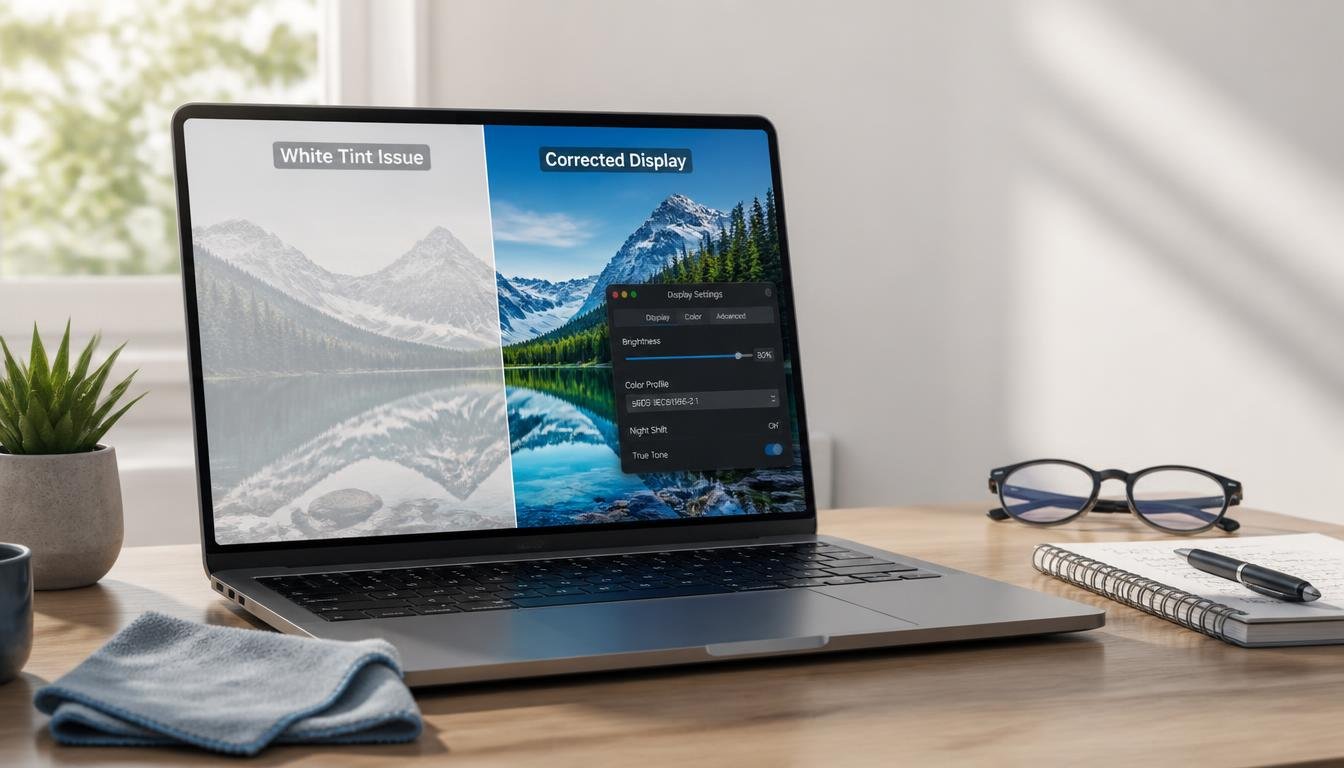
A macbook screen white tint can be frustrating, especially when you rely on accurate colors for work, studying, editing photos, or simply enjoying your favorite content. Instead of displaying deep blacks and vibrant colors, the screen suddenly looks washed out, pale, or covered with a faint white layer. While the issue may seem alarming at first, it doesn’t always mean your MacBook has suffered permanent hardware damage. In many situations, software settings, display calibration, accessibility options, or environmental conditions can be responsible. Understanding the real cause is the first step toward restoring your display to its normal appearance without unnecessary repairs or expenses.
Whether you own a MacBook Air or a MacBook Pro, the appearance of a white tint can develop gradually or happen unexpectedly after a system update, accidental drop, or prolonged use. This guide explains every common cause, practical troubleshooting method, repair option, and prevention tip. By the end, you’ll have a clear understanding of how to diagnose the issue and decide whether you can solve it yourself or if professional assistance is the better choice.
What Is a MacBook Screen White Tint?
A macbook screen white tint refers to an abnormal display condition where the entire screen appears brighter, hazier, or more washed out than normal. Instead of balanced colors, whites become overpowering while darker colors lose depth and contrast. In some cases, the tint affects the whole display equally, while in others it only appears around the edges or in certain sections of the screen.
The problem can range from barely noticeable to severe enough that reading text or editing images becomes difficult. Since modern MacBooks use highly color-accurate Retina and Liquid Retina displays, even a slight color imbalance becomes immediately obvious. Fortunately, identifying whether the problem originates from software or hardware usually narrows down the solution quickly.
Common Causes of MacBook Screen White Tint
Display Calibration Problems
MacBook displays rely on color profiles that determine how colors appear. If these profiles become corrupted or incorrectly configured, the display may develop a white tint instead of showing natural color balance.
This often happens after software updates, importing custom display profiles, or connecting external monitors. Resetting the color profile usually restores normal display accuracy within minutes.
True Tone Feature
True Tone adjusts your screen based on surrounding lighting conditions. While the feature generally improves viewing comfort, unusual lighting environments may cause the display to appear warmer or noticeably whiter than expected.
Turning True Tone off temporarily helps determine whether it is responsible for the white tint.
Night Shift Settings
Night Shift changes display colors by reducing blue light. Although it normally adds warmer tones, unusual scheduling conflicts or incorrect settings may create unexpected display changes that resemble a faded white appearance.
Checking Night Shift settings is one of the easiest troubleshooting steps before assuming hardware failure.
Accessibility Display Adjustments
Accessibility settings allow users to modify contrast, transparency, and color filters. Sometimes these options are accidentally enabled, producing an unusual display appearance.
Reviewing accessibility display settings often solves problems that seem much more serious than they actually are.
Software Bugs
Occasionally, macOS updates introduce temporary graphics issues affecting display rendering. Restarting the MacBook, installing the latest update, or resetting display preferences frequently resolves these software-related problems.
If the white tint appeared immediately after updating macOS, software should be considered before suspecting physical damage.
Display Cable Issues
Inside every MacBook, delicate display cables connect the screen to the motherboard. Over time, repeated opening and closing of the lid may place stress on these cables.
A loose or damaged cable can produce unusual colors, flickering, brightness inconsistencies, or a persistent white tint across the display.
LCD or Backlight Damage
Physical damage remains one of the most common hardware causes of a macbook screen white tint. A drop, pressure on the lid, liquid exposure, or manufacturing wear can affect the LCD layers or LED backlight.
Unlike software issues, hardware damage usually remains visible regardless of operating system settings or restarts.
Symptoms That Usually Accompany a MacBook Screen White Tint
| Symptom | Possible Cause |
|---|---|
| Washed-out colors | Display calibration |
| White haze across screen | LCD damage |
| Uneven brightness | Backlight issue |
| Flickering display | Display cable |
| White tint after update | Software bug |
| Color shifts during daylight | True Tone |
| Random brightness changes | Accessibility settings |
| White edges only | Pressure damage |
How to Fix MacBook Screen White Tint
Restart Your MacBook
A simple restart clears temporary graphics glitches and reloads display drivers. While it sounds basic, many temporary white tint issues disappear after a complete restart rather than waking the MacBook from sleep.
Disable True Tone
Navigate to Display Settings and temporarily disable True Tone. Compare the display before and after changing the setting.
If colors immediately return to normal, no repair is required.
Turn Off Night Shift
Open the display settings and disable Night Shift entirely. Restart the computer afterward to verify whether the white tint disappears.
Reset Display Color Profile
Choose the default Apple display color profile instead of any custom profile. Incorrect calibration frequently causes faded whites and inaccurate color reproduction.
Check Accessibility Options
Review display accessibility settings carefully.
Color Filters, Increased Contrast, Reduced Transparency, and other visual adjustments may unintentionally alter screen appearance.
Boot Into Safe Mode
Safe Mode loads only essential system components. If the white tint disappears while running in Safe Mode, a third-party application or software conflict is likely responsible.
Test With an External Monitor
Connecting an external display helps identify whether the problem originates from the MacBook screen or the graphics processor.
| Test Result | Likely Problem |
| External display normal | MacBook screen hardware |
| Both displays affected | Graphics or software |
| Tint only on MacBook | LCD or cable |
| Tint disappears externally | Internal display fault |
Update macOS
Keeping macOS updated ensures that known graphics bugs and display issues receive official fixes through software improvements.
Reset NVRAM
Display preferences, resolution settings, and startup display information are partially stored in NVRAM. Resetting it can correct unusual color behavior that persists after restarting.
When Hardware Repair Becomes Necessary
If every software solution fails and the macbook screen white tint remains unchanged, hardware repair becomes the next logical step. Internal LCD damage, deteriorating backlight components, damaged display connectors, or liquid exposure usually require professional inspection. Continuing to use the device under these conditions rarely improves the problem and, in some cases, may allow the damage to worsen over time. Early diagnosis often prevents additional internal components from being affected and may reduce overall repair costs.
Technicians typically perform display diagnostics before recommending a complete screen replacement. In some situations, only the display cable needs replacement, while more severe damage requires installing a new display assembly. Receiving an accurate diagnosis before purchasing replacement parts helps avoid unnecessary expenses.
Can a White Tint Damage Your MacBook?
The white tint itself does not damage the computer. Instead, it usually represents another issue already affecting the display system.
Ignoring the problem may become inconvenient because reading text becomes more difficult, photo editing loses color accuracy, and long working sessions can contribute to increased eye fatigue. Addressing the issue early generally leads to a faster and more affordable solution.
How to Prevent MacBook Screen White Tint
Avoid exposing your MacBook to excessive pressure by storing it in a padded protective sleeve whenever it is transported. Keep liquids away from the keyboard and display, since even minor spills can affect internal display components over time. Regularly install macOS updates so software improvements and graphics fixes remain current, and avoid installing unnecessary display calibration utilities unless they are genuinely required. Cleaning the screen with a soft microfiber cloth instead of harsh chemicals also helps preserve the display coating and overall viewing quality for years.
Another useful habit is monitoring display behavior after major operating system updates. If color changes appear immediately after updating, testing default display settings before assuming hardware failure can save considerable time and unnecessary repair costs. Gentle handling, proper storage, and routine maintenance remain the most effective ways to preserve the clarity and color accuracy of a MacBook display.
Example Scenario
Imagine a graphic designer notices a macbook screen white tint immediately after updating macOS. Initially, they assume the display has failed. After checking the display settings, they discover that the color profile has changed unexpectedly during the update. Restoring the default profile instantly returns the screen to its original color accuracy without requiring any repair. This simple example demonstrates why software troubleshooting should always come before considering hardware replacement.
Conclusion
Experiencing a macbook screen white tint does not automatically mean your display has reached the end of its life. Many cases result from display settings, software updates, color profiles, or accessibility adjustments that can be corrected within a few minutes. Even when hardware issues are responsible, identifying the exact cause before replacing expensive components can save both time and money. By following a logical troubleshooting process and recognizing the warning signs of genuine hardware failure, you can make informed decisions about repairs and maintenance. If the white tint persists despite every software solution, professional diagnostics are the safest next step. Take action as soon as you notice unusual display behavior, protect your MacBook from physical damage, and keep your system updated so your screen continues delivering the color accuracy and clarity it was designed to provide.
Frequently Asked Questions
What causes a MacBook screen white tint?
A macbook screen white tint is commonly caused by display color profile problems, True Tone settings, Night Shift configuration, software bugs, accessibility display options, damaged display cables, LCD failures, or backlight issues. Determining whether the problem is software or hardware related is the most important first step before attempting repairs.
Can software updates cause a MacBook screen white tint?
Yes. Occasionally, macOS updates may alter display settings, reset color profiles, or introduce temporary graphics glitches that make the screen appear washed out or unusually white. Checking display preferences and installing any available updates often resolves the issue.
How do I know if my MacBook screen needs replacement?
If the white tint remains visible after restarting, resetting display settings, testing Safe Mode, and connecting an external monitor, the internal display hardware may be damaged. Additional signs such as flickering, cracks, pressure marks, uneven brightness, or persistent discoloration usually indicate that professional repair or screen replacement is necessary.
Does resetting display settings remove the white tint?
In many situations, yes. Resetting display color profiles, disabling True Tone, turning off Night Shift, and reviewing accessibility settings can restore normal color balance when the issue is software related. These steps should always be attempted before considering hardware repairs.
Can a damaged display cable create a white tint?
Yes. A worn or partially disconnected display cable can interfere with the signal reaching the LCD, resulting in white tinting, flickering, brightness fluctuations, or unusual color shifts. A technician can inspect and replace the cable if necessary.
Will using my MacBook with a white tint make the problem worse?
The white tint itself does not usually cause additional damage, but if the underlying cause is hardware failure, continued use may allow the condition to deteriorate over time. Prompt diagnosis is recommended to prevent more extensive repairs.
Is a MacBook screen white tint covered under warranty?
Coverage depends on the cause of the issue and the warranty status of your device. Manufacturing defects may qualify for warranty service, while accidental damage or liquid exposure is generally not covered under standard warranty terms.
Can I fix a MacBook screen white tint at home?
Many software-related cases can be resolved at home by adjusting display settings, resetting color profiles, updating macOS, restarting the computer, or resetting system preferences. However, hardware issues involving the LCD, backlight, or display cable typically require professional repair.




Leave a Reply